Why you should check a refurbished monitor before buying
Buying refurbished can be a smart way to get a better monitor for less money — but it also requires due diligence. Refurbished units vary in condition and the level of repair or testing carried out. Before you commit, check the technical specs, physical condition and conduct a few simple display tests so the screen meets your needs.
Key specifications to check
Panel type
Panel technology affects colour reproduction, viewing angles and response time. Common types are:
| Panel | Typical strengths | Typical trade-offs |
|---|---|---|
| IPS | Accurate colours, wide viewing angles, good for office and creative work | Slightly higher cost; some models show IPS glow at extreme angles |
| VA | High contrast and deep blacks, good for watching films | Slower pixel response than IPS; potential smearing in fast motion |
| TN | Fast response times and usually cheaper — often chosen by gamers | Narrower viewing angles and weaker colour reproduction |
| OLED | Excellent contrast and deep blacks; rapid response | More costly; risk of burn‑in on some use cases |
Resolution and size
Match the monitor resolution to screen size and intended use. For general office work, 1080p is usually fine on 21–24 inch screens. For photo editing, CAD or detailed spreadsheets, consider 1440p or 4K on larger panels. Higher resolution increases the pixel density and sharpness, but also needs a suitable graphics output and may affect system performance.
Inputs and connectivity
Check which inputs the monitor has and whether they match your PC or laptop:
- HDMI — common for laptops, consoles and many desktops.
- DisplayPort — preferred for high refresh rates and multi‑monitor setups.
- USB‑C with DisplayPort Alt Mode — useful for single‑cable laptop docking and power delivery.
- Legacy ports (DVI, VGA) — only useful if your device requires them.
Also check for built‑in USB hubs, audio out, KVM features or an integrated power supply. Ask if any cables are included.
Refresh rate, response time and adaptive sync
For gaming, look for higher refresh rates (120Hz, 144Hz or more) and low response times. Check whether the monitor supports adaptive sync (FreeSync or G‑Sync compatible) if you want smoother gameplay without tearing.
Colour accuracy and gamut
If you do photo or video editing, check the monitor’s advertised colour coverage (sRGB, Adobe RGB, DCI‑P3) and whether it was calibrated. A calibrated IPS panel with a wide colour gamut is usually best for creative work. For other users, factory calibration may be less critical but still useful.
Physical and ergonomic checks
Stand and mounting
Check whether the supplied stand offers tilt, height adjustment, swivel or pivot. If you plan to use a monitor arm, verify the VESA mounting pattern (e.g. 75x75mm or 100x100mm). Confirm whether the stand and any screws are present and in good condition.
Condition of the case and ports
Inspect the casing for cracks, gouges or dents. Check all ports for bent pins or damage. If a monitor has built‑in speakers, test them; speakers on monitors can vary a lot in quality.
Pixel and display testing to do on arrival
When you receive a refurbished monitor, perform these tests straight away and within the seller’s return period if there are issues.
Basic set up
- Unpack carefully and assemble with the stand or fit to a VESA arm.
- Connect using a high‑quality cable that supports the resolution and refresh rate you want (e.g. DisplayPort 1.4 for 4K@120Hz).
- Set your computer’s output to the screen’s native resolution and refresh rate.
Dead and stuck pixel check
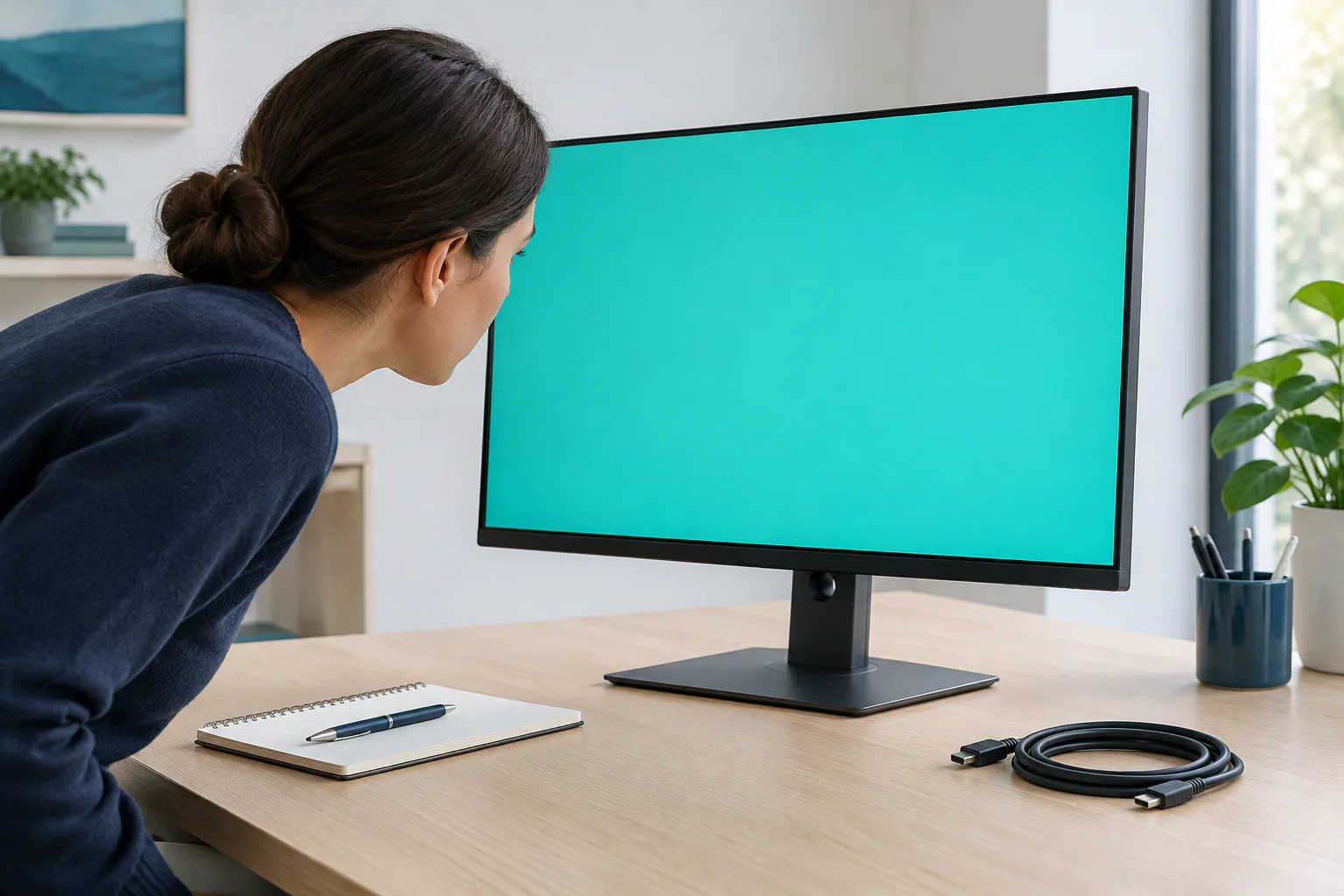
Display solid full‑screen colours — black, white, red, green and blue — and inspect at a normal viewing distance. Dead pixels appear as small black dots on any colour, stuck pixels show as a single colour regardless of the image. Count any defects and compare them to the seller’s dead‑pixel policy; many refurbishers allow a small number of stuck pixels.
Backlight bleed and uniformity
In a dark room, show a near‑black image and look for uneven light leaking at the edges or corners; this is backlight bleed. Also test a mid‑grey screen and check for patches of different brightness — brightness uniformity matters for editing and film work.
Colour and gradient banding
Show gradients (dark to light) and look for smooth transitions. Noticeable banding or colour shifts when you tilt the screen suggest problems with the panel or incorrect colour settings.
Viewing angles and motion performance
For IPS and VA panels, move your head side‑to‑side and up‑and‑down to check for colour shift. For gaming, run fast motion tests and watch for trailing or ghosting that indicates slow response times.
Flicker and PWM
If you’re sensitive to flicker, reduce brightness to typical working levels and look for visible flicker or use a camera at low shutter speed to detect PWM dimming. Ask the seller if the monitor uses flicker‑free technology if this is a concern.
Match the monitor to your intended use
- Office/Productivity: Comfort, height adjustment, anti‑glare coating and 1080p–1440p resolution are usually sufficient.
- Gaming: Higher refresh rates, low response time, adaptive sync and DisplayPort input matter most.
- Photo/video editing: IPS panel, wide colour gamut, accurate calibration and good uniformity are important.
- Media consumption: Contrast and deep blacks (VA or OLED) improve film viewing.
Questions to ask the seller
- What does “refurbished” mean in this specific sale? Were parts replaced or repaired?
- What testing was performed and can they share results (pixel check, power cycle tests)?
- Is there a warranty, what does it cover and how long does it last?
- What is the returns policy and the timeframe for reporting faults?
- Are any cables, calibration reports or original accessories included?
Tip: Keep the box and packaging for at least the returns period — some sellers require original packaging for returns or exchanges.
Final checks before you accept or install
- Confirm the VESA pattern and stand fastenings if you plan to wall‑mount or use an arm.
- Verify the monitor’s firmware is up to date and ask if the seller applied any updates.
- Test the monitor with the type of content you will use daily — spreadsheets, video or games — to ensure it performs where it matters.
Where to get help
If you’re acquiring multiple refurbished monitors for an office or need reassurance about testing standards, suppliers such as PLC Solutions refurbish and test IT equipment and can discuss the level of refurbishment and testing they provide. Always ask for clear testing and returns terms and verify that they meet your organisation’s needs.
Ultimately, a little time spent checking specifications, asking the right questions and running basic tests will help you get a refurbished monitor that performs reliably for your intended use. Verify current requirements and seller policies for your circumstances before purchasing.