Why storage choice matters in a refurbished computer
When you buy a refurbished computer the storage drive you inherit or choose can have a greater impact on day‑to‑day experience than the processor or RAM. Storage affects how quickly a machine boots, how responsive applications feel, how much you can store locally and how likely you are to recover from knocks, power problems or wear over time.
How SSDs and HDDs work, in brief
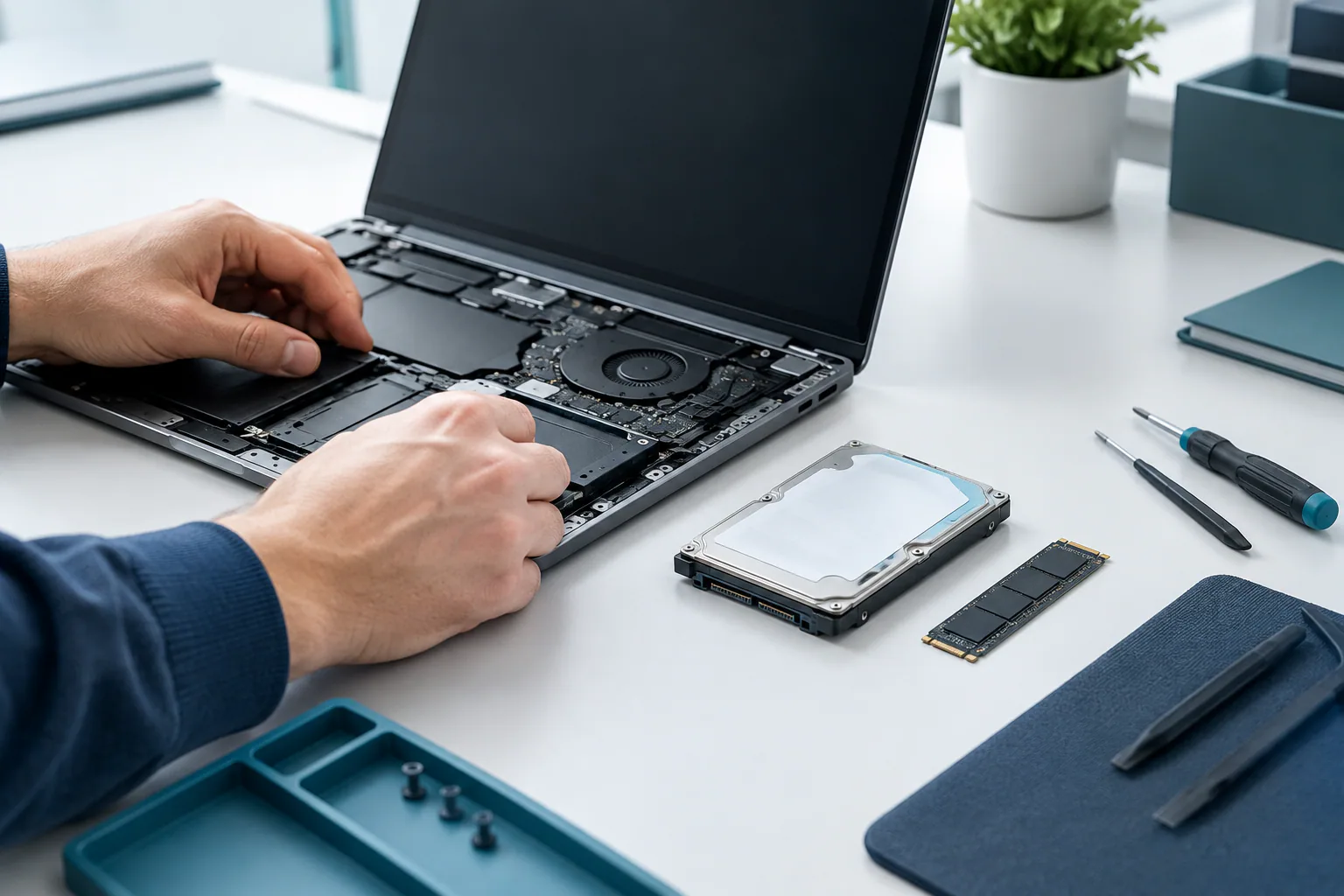
Hard disk drives (HDDs) store data on spinning magnetic platters and use moving read/write heads to access that data. They have mechanical parts, are typically 3.5" or 2.5" in size, and connect via SATA or, less commonly, older interfaces.
Solid-state drives (SSDs) store data on flash memory with no moving parts. They come in 2.5" SATA form factors and compact M.2 modules that use SATA or NVMe interfaces. NVMe SSDs, connected over PCIe lanes, deliver higher throughput and lower latency than SATA SSDs.
Performance: real-world differences
Performance is where SSDs shine. In everyday use an SSD usually delivers:
- Faster boot and shutdown times.
- Snappier application launches and shorter load times for large files.
- Smoother multitasking because random read/write latency is far lower.
HDDs can still provide acceptable performance for simple tasks such as web browsing, email and document editing, but they struggle with heavy multitasking, virtual machines and workloads involving many small reads and writes.
Benchmark figures vary widely by model and interface. NVMe SSDs outperform SATA SSDs, which in turn outperform HDDs. For refurbished systems, an SSD upgrade often produces the most noticeable improvement for the least cost.
Capacity and cost considerations
HDDs generally offer a lower cost per gigabyte, making them attractive for storing large media libraries, backups and archives. Common capacities for refurbished laptops and desktops include:
- HDDs: 500 GB to several TB (typical refurbished units often have 500 GB–2 TB drives).
- SSDs: 120 GB to 2 TB for common consumer models; larger capacities are available but cost more.
If you need terabytes of local storage on a tight budget, an HDD can make sense. For most users who prioritise responsiveness over sheer capacity, a modest SSD (256–512 GB) with external or networked storage for large files is a practical compromise.
Durability and reliability
Shock and mechanical resilience: Because HDDs have moving parts, they are more vulnerable to physical shock and vibration. SSDs are more resistant to knocks and drops, which is especially relevant for laptops and mobile use.
Wear and endurance: SSDs use flash memory cells that can only be written a finite number of times. Modern consumer SSDs are designed to last many years under typical workloads, and endurance has improved significantly. HDDs do not have the same write‑cycle limits but can fail mechanically over time.
Important: Drive longevity varies by model, workload and prior use. When buying refurbished equipment, ask the seller about drive health checks, any wear-level indicators (such as SSD total bytes written) and whether the drive has been replaced or stress‑tested. Always verify current requirements for your specific circumstances and backups.
Power, noise and thermal behaviour
- Power: SSDs usually consume less power than HDDs, which can extend battery life in laptops.
- Noise: SSDs are silent; HDDs produce audible spinning and occasional seek noise.
- Heat: High-performance NVMe SSDs can run warm and may need airflow or heatsinks in compact systems. HDDs typically run cooler but can produce heat under sustained transfers.
Which storage type suits different use cases?
Choosing between SSD and HDD depends on what you do with the computer. Use the following as a guide:
When to choose an SSD
- You want fast boot times and responsive everyday performance.
- You run multiple applications, virtual machines, or work with databases or development environments.
- You use a laptop that will be moved regularly and needs better shock resistance and battery life.
- You edit photos and videos and want faster previewing and smaller export times (paired NVMe drives offer the best results).
When an HDD is appropriate
- You need high local capacity for media libraries, backups or archival storage on a limited budget.
- The computer will be used in a stationary, low‑impact environment (desktop file server, office archive) where mechanical risk is low.
- You want to retain affordability while pairing with a small SSD used only for the operating system and applications.
Hybrid and combined approaches
Many refurbished systems benefit from a hybrid approach: a small SSD for the operating system and apps and a larger HDD for bulk storage. There are also SSHDs (solid state hybrid drives) that combine flash cache with a spinning platter; they can improve perceived performance for common files but rarely match a true SSD.
Practical checklist when buying or upgrading a refurbished computer
- Ask what drive is fitted and request a SMART health report or equivalent where possible.
- Check physical form factor and interface: 2.5" SATA, M.2 SATA, or M.2 NVMe. Ensure the device supports the drive type you want to use.
- Consider a small SSD for the OS (256–512 GB) plus an HDD for media if you need capacity.
- Confirm if firmware on SSDs is up to date and whether the seller will install the operating system cleanly.
- Verify warranty or return terms for drives and ask about any refurbishment tests performed on storage devices.
- Plan your backup strategy before transferring important data — refurbished drives may have shorter usable lifespans depending on prior use.
Setting up and maintaining storage in a refurbished machine
- Clone an old drive or perform a fresh OS install to avoid carrying over accumulated software issues.
- Enable TRIM on SSDs (most modern operating systems do this automatically) to maintain performance over time.
- Monitor SMART attributes periodically to spot early signs of failure.
- Keep backups: regardless of drive type, regular backups are the best defence against data loss.
- Consider encryption if the computer stores sensitive data — check performance impact on older CPUs if using full‑disk encryption.
Summary decision table
| SSD | HDD | |
|---|---|---|
| Performance | Fast boot and app load, low latency | Slower, especially for small random reads/writes |
| Capacity per cost | Higher cost per GB | Lower cost per GB |
| Durability | Better shock resistance; finite write endurance | Mechanical wear and risk from shock |
| Best use | OS, apps, frequent use, laptops | Bulk storage, backups, media libraries |
Tip: For most buyers of refurbished machines, prioritising an SSD — even a modest one — delivers the biggest uplift to everyday experience. Pair it with external or network storage if you need large capacity on a budget.
Where PLC Solutions can help
PLC Solutions refurbishes and tests IT equipment and can advise on sensible storage configurations depending on your needs and budget. If you are buying refurbished for a business, school or home, ask about the drive type, health checks and upgrade options before you purchase. Always verify specific warranties, return policies and data sanitisation procedures with the seller.
Final thoughts
SSDs and HDDs each have clear strengths. Choose an SSD for responsiveness and mobility; choose an HDD when large, low‑cost capacity is the priority. For many refurbished computers the most practical solution is a combination of the two. Whatever you select, plan backups and check the drive condition so the refurbished machine meets your expectations.